Topic anatomy for multi-document analysis
Completed
November 2025
Contributors
Sebastian Bustamante (NRI - Lead Data Scientist)
Making sense of today’s flood of scholarly documents requires tools that summarise and structure large corpora. Topic modelling and content-based clustering can provide that map: they help scope literature reviews, surface emerging themes, power recommendations and curation, support reviewer assignment, track trends, and improve information retrieval. They also help agentic systems operate under context-window and cost constraints by enabling smarter routing and deeper context with fewer tokens.
We introduce on-demand topic anatomies, a method that transforms a chosen corpus into a hierarchical map of topics and subtopics using machine-extracted keywords. It’s configurable, currently works for publications, and readily extends to other document types. Available in an interactive UI and as MCP-native tools (Model Context Protocol), this serves as a concrete case of agents running a multi-step ML workflow, in contrast to typical tool use limited to simple retrieval.
‘vibe-coding’ has been used to develop a usable interactive graph visualisation to assist users in exploring and better understanding results from their submission to this new MCP-driven multi-document topic anatomy summarisation tool.
This article details the design process, decisions, and user functionality and interaction found implemented in the visualisation. For information on the underlying MCP-driven summarisation tool itself, please visit here.
‘vibe-coding’ has been used to develop a usable interactive graph visualisation to assist users in exploring and better understanding results from their submission to this new MCP-driven multi-document topic anatomy summarisation tool.
‘Vibe-coding’ was used Microsoft’s Copilot AI assistant in MS Visual Studio Code to build an interactive, animated visualisationto support a new prototype multi-document topic anatomy summarisation tool. tool developed by data scientists within Springer Nature.
The article details some design decisions and constraints encountered during the development process.
Additonal detail can be found in an associated Hive post; please visit here.

Firstly, we provide seven key functions that allow users to
manually manipulate and move the chart to suit their own needs.
These functions are, from top to bottom in the adjoining image:
- Show/hide legend
- Download PNG image file of current chart view
- Zoom in one step
- Zoom out one step
- anatomy or contract topic anatomy to Level 1 only (depending on current viewed state of chart)
- Centre chart’s current view state and display at full extent
- Reset chart to original ‘onload’ view state
Each function is provided via simple-to-use one-step ‘shortcut’
buttons, avoiding the need to endlessly manually manipulate and
reposition the chart using a mouse/trackpad (incidentally,
functionality that is also provided on the interactive, but is
often not realised as being available to users due to its
inherent ‘invisibility’, and consequently not discussed in
detail here).
Note: if this tool was ever productionised, additional work
would be undertaken to improve each button’s imagery.
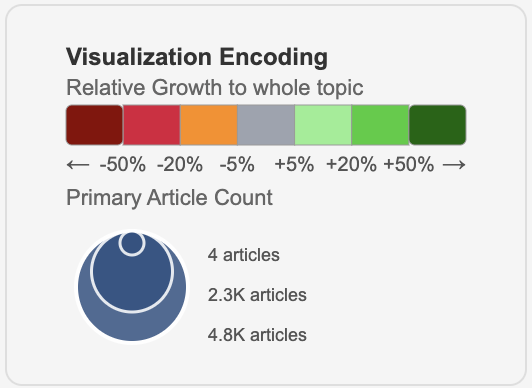
An informative yet compact information reference legend is also provided. This summarises the two mechanisms to encode information used on the topic anatomy. This legend can be displayed and hidden using the topmost button on the button panel. The upper colour ramp allows users to interpret coloured accents provided on subtopic labels; these assign distinct numeric ranges to each colour band denoting different grades of positive/negative topic growth compared with the main topic’s growth. Colour is most effective when used to encode nominal, ordinal or categorical data representing distinct groups rather than continuous values (below, left). When using colour for a continuous variable, it's often hard to accurately decipher the exact value, and it can be difficult to distinguish between [very] similar colours, especially when there are many categories. Hence, we try to avoid using continuous smoothly graduated colour ramps such as those illustrated below (right). Instead, we circumvent this design issue by using a banded categorical colour ramp; although it may still assign a single colour band to a small range of values (e.g. 0-5, 6-10, 11-15 etc...) it will always allow users to more precisely estimate the true value associated [to the subtopic].
The lower ‘scaled symbol’ image encodes subtopic size – measured using Primary Article Count – via scaled circle geometries. It is also dynamically generated; value labels presented adapt according to the numeric [minimum, maximum] range of primary articles of the main topic’s spread of subtopics for which the anatomy is built. Separating how Relative Growth and Primary Article Count was encoded on the topic anatomy was a conscious design decision that is discussed in detail in the section ‘Coloured accent tabs introduced to show sub-topic growth rate’.
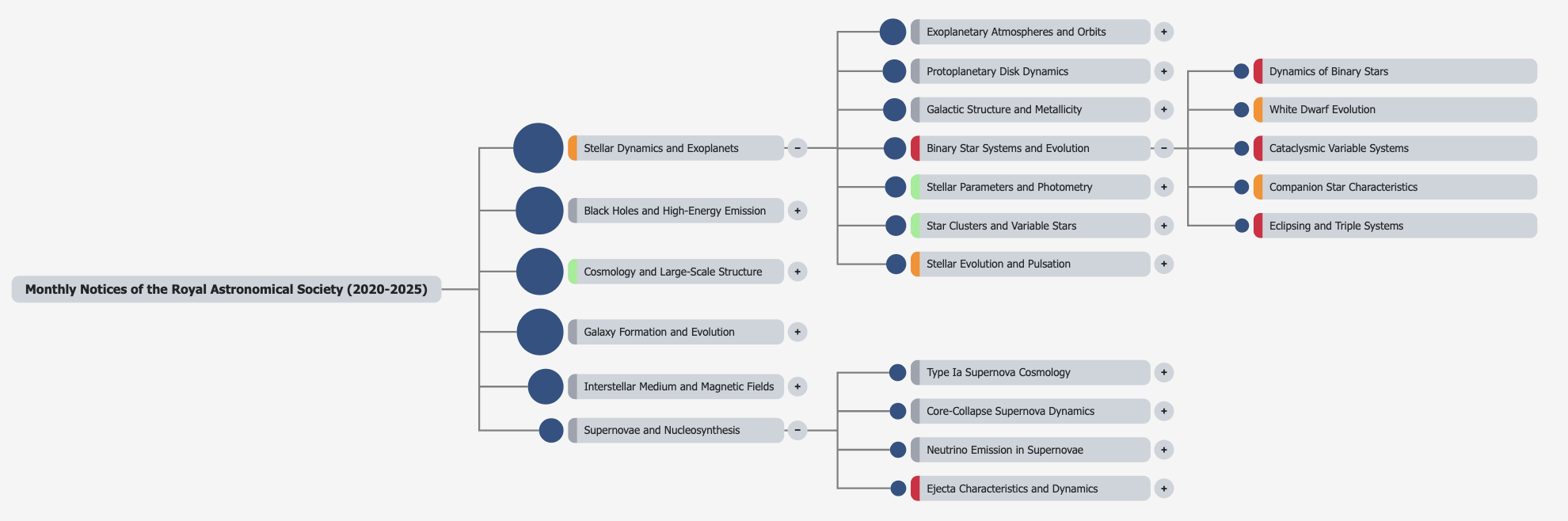
We felt users of this document review tool would really appreciate ability to evaluate subtopics found on different branches and at different levels of its topic anatomy. As such, we provided the ability for users to freely expand or contract any branch at any level at will, independently of each other. This provided a truly user-friendly, user-centric functional addition to the topic anatomy allowing them to assess and compare subtopics across the full topic anatomy hierarchy, and as such, make the view as simple or complex as the user needs to.
Additoinally, as users expand more branches on the topic anatomy, they risk extending the chart beyond the boundary of the underlying canvas. To counter this, we introduce the ability for any chart to ‘self-centre’, smoothly repositioning itself to always be fully viewable by automatically zooming the chart to full extent. This effect can be seen in this linked video. This transitioning of the chart is set to occur when users either fully expand the topic anatomy – via the relevant function button – or expand a single branch.
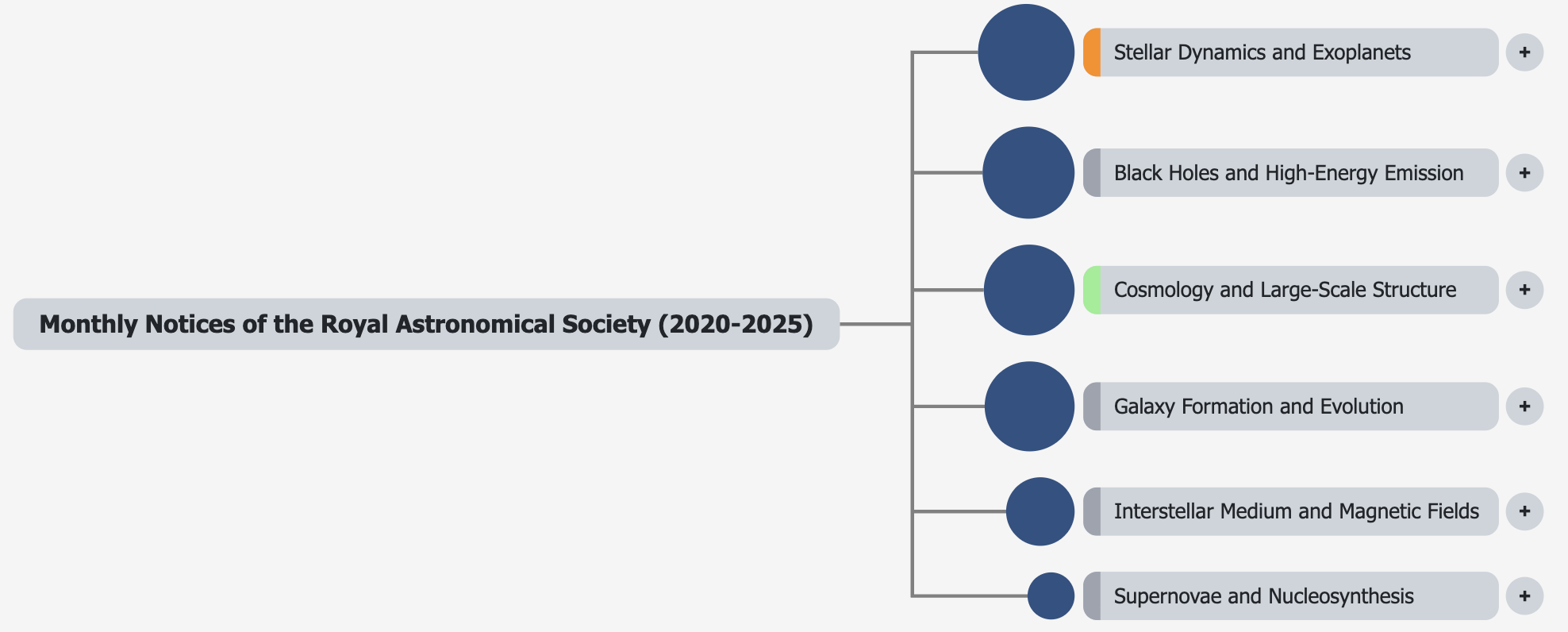
Each expanded branch displays subtopics it contains in descending order of absolute size (in this case, Primary Article Count). Each circle’s area is scaled according to this metric and we also ensure symbol scaling is achieved using the correct mathematical relationship ( Link ).
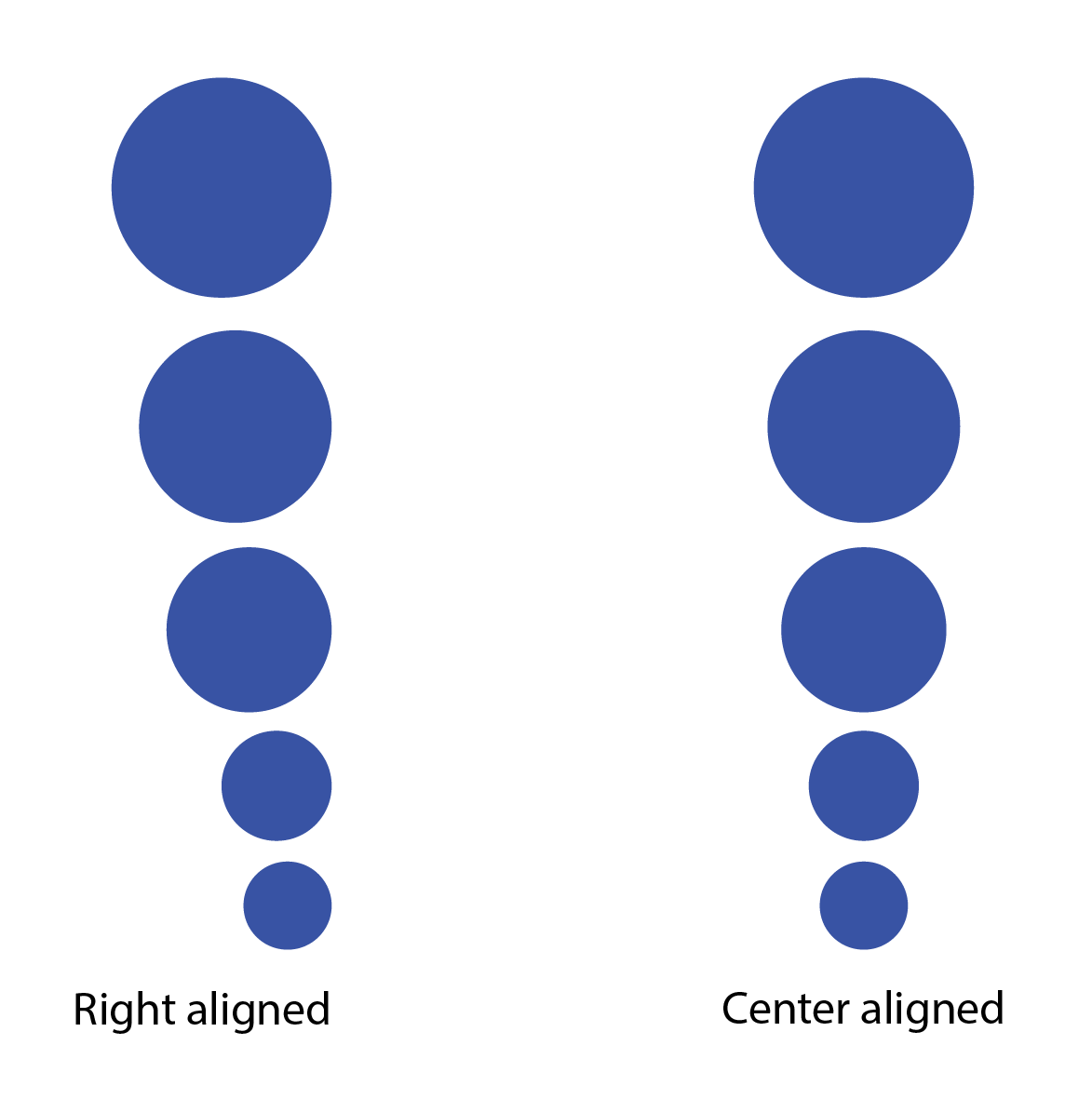
Right aligning all scaled circles to allow users to more easily inspect and evaluate absolute differences in size of multiple subtopics as – even though area is the attribute scaled to the metric in question - a circle’s diameter, a linear scalar attribute, will also change as a function of this same metric. Thus, right (or left) aligning all geometries effectively mimics encoding these scalar values as a simple bar chart.
Right aligning these circles (below) also allows users to more
easily assess variability between non-adjacent geometries, using
the same basic pre-attentive attributes of length and area. Had
these vertical tranches of circles been centre aligned (below,
right), a user would – at worst - not have the additional
benefit of circle diameter (i.e. a scalar attribute) to evaluate
variation in size, or at best had to perform more
time-consuming, attentive processing to accurately estimate
differences in subtopic size.
Finally, right aligning all scaled circles also helps us achieve a ‘cleaner’ layout to the visualisation; By vertically aligning these scaled geometries, all label blocks, coloured topic growth accent tabs and expand/contract buttons are also automatically aligned, easing comparison and user interaction.
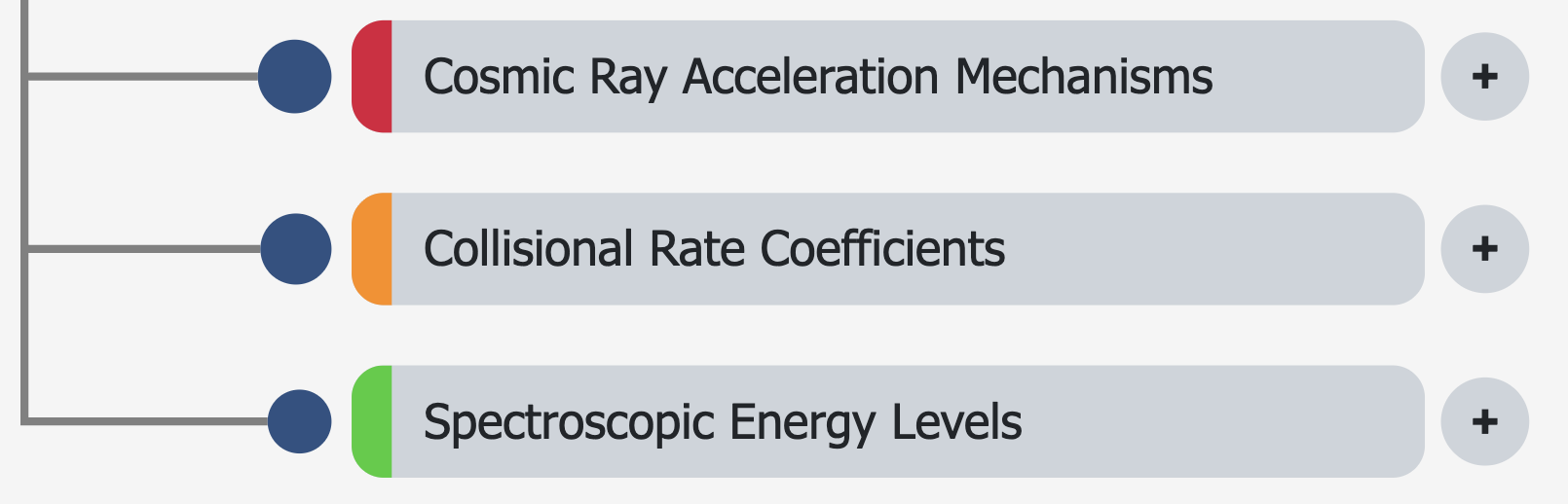
Comparing growth of individual subtopics within a topic anatomy with respect to both the main topic itself and to each other is of vital importance to understand where major changes in research focus [may] currently lie. Consequently, this gives some indication as to which subtopics are potentially emerging - becoming more important - and which are decaying (becoming less important).
To assist with this, we introduce coloured accent tabs to quickly indicate relative growth of a subtopic compared with its main parent topic. This allows users to quickly identify which subtopics are growing and which are decaying, and through the legend positioned to the top left of the visual, determine an approximate size of the relative growth/decline.
Having each coloured accent occupy the same physical size and position – relative to the scaled circle and subtopic label to which they relate - minimises cognitive [over]load and lends itself to increased pre-attentive processing capability. The eye is not needlessly jumping back and forth across a column of coloured accents - instead it can quickly scan up and down the line of accents – and variable element size is not a distracting, false narrative for visually conveying information to the user.
We decouple use of colour to encode one attribute (Relative Growth) from using size for a second attribute (Primary Article Count) on each subtopic to avoid [physical] size having an artificial, misrepresentative influence on understanding the colour definition. This is often an unwanted effect experienced in the visualisation space; notably, for example on choropleth maps, where physically larger areas may often misleadingly attract more attention from the user than smaller geographic areas, even when they may not be the focus on the ‘story’ or trend being told. Consequently, hex maps are often a better solution to mapping geographical variability across a single metric, or cartograms if there is an underlying denominator against which to evaluate, for example, a resident population, people of working age, number of sufferers of a particular illness.
Colour should not be used to encode values on circles scaled by a second attribute because it creates a cognitive overload; humans are better at judging differences in size - and even better at judging differences in length - than in colour. When you use two quantitative encodings (colour and size), a user is forced to simultaneously process two different, potentially confusing data dimensions, which can lead to misinterpretation and makes it difficult to accurately compare values.
Size is a better primary encoding for quantitative values: Your eye is more naturally adept at comparing differences in size than in colour. For a visual element like a circle, size is the more effective channel for encoding a quantitative value, such as population or magnitude.
- Colour is better for categories: Colour is most effective when used for nominal or categorical data, which represents distinct groups rather than continuous values. When you try to use colour for a continuous variable, it's often hard to accurately decipher the exact value, and it can be difficult to distinguish between similar colours, especially when there are many categories.
- Cognitive overload: Presenting two quantitative values simultaneously (one through size, one through colour) forces the viewer to make two different comparisons at once, which can lead to confusion and errors.
- Poor comparison: It's hard to compare values accurately. For instance, if you have two circles of different sizes, it's difficult to determine which one is larger without a clear legend, and it's even harder if they also have different colours representing a second variable.
Note: the colour ramp used here was selected just for illustrative purposes to emphasise how logically positioned coloured accent tabs could be used to encode key information. If this tool were ever productionised, more design work and user testing should be undertaken to select colour palettes more attuned to user accessibility needs and to accommodate users with colour-blindness and colour vision deficiencies (CVD).
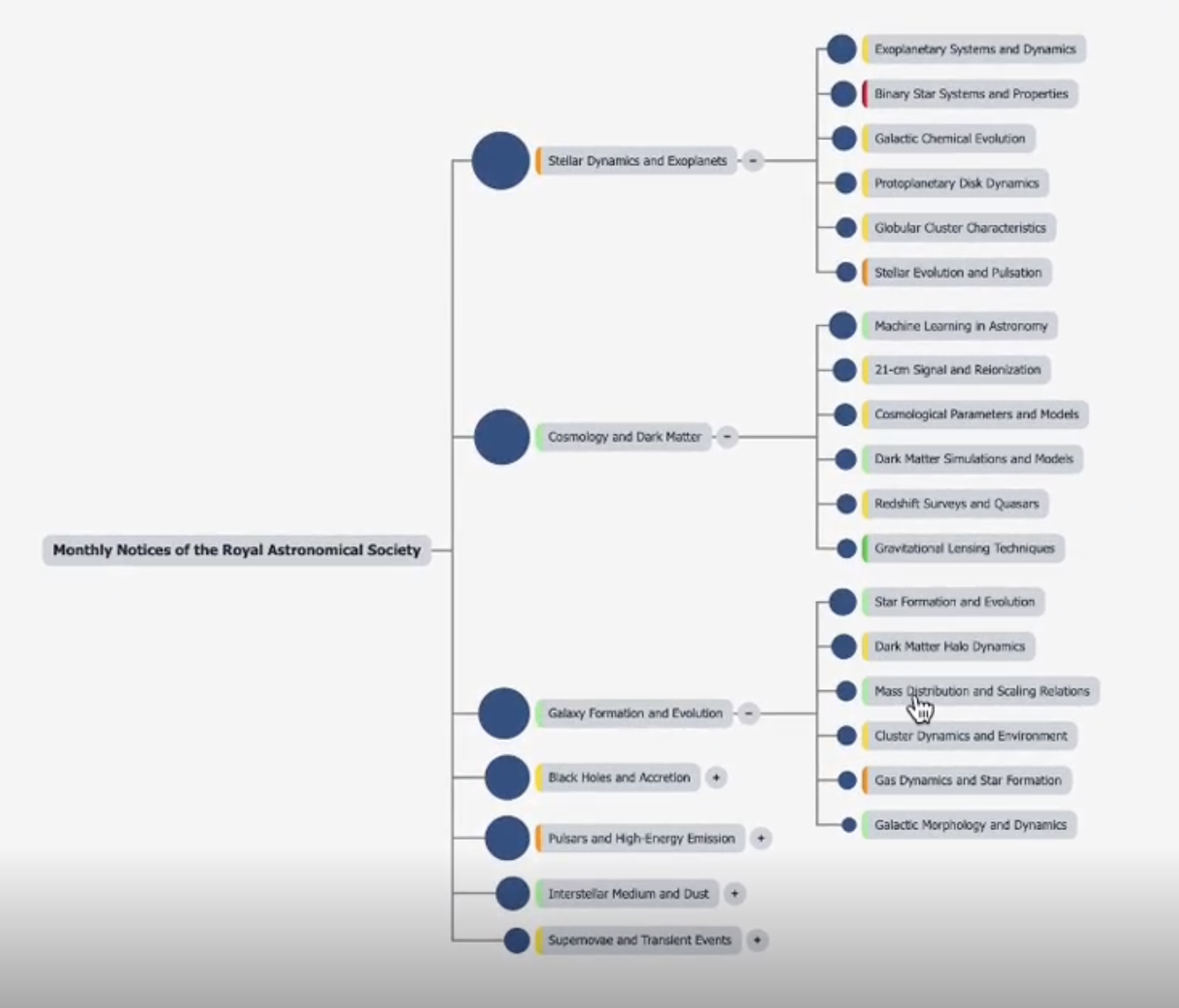
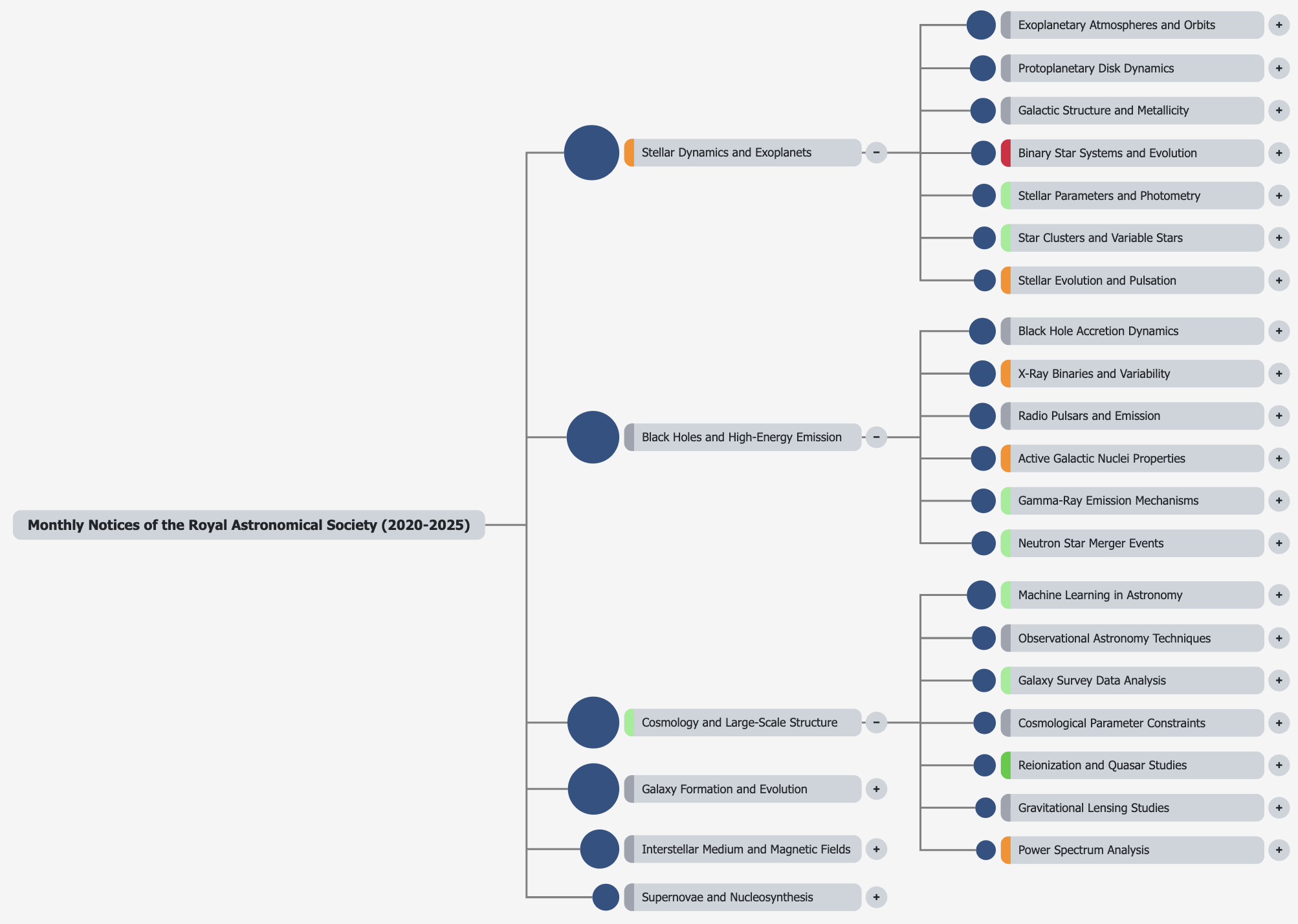
Earlier iterations of this topic anatomy used variable-width subtopic labels, based solely on the length of the enclosed label. As the topic anatomy’s development progressed, we increasingly felt this looked untidy, ugly and made user interactions – to expand and contract individual branches to the anatomy – more difficult (left hand image). Adopting variable width label backgrounds also risked leading users to inadvertently and incorrectly conclude width was encoding another attribute, potentially leading to further confusion.
Harmonising widths of all label backgrounds gives a much cleaner appearance to the full topic anatomy, more notably appreciated when multiple branches are expanded. Doing so also automatically ensures all +/- symbols are vertically aligned, making moving the mouse cursor between them much easier and intuitive (right hand image ).
Being able to manipulate the topic anatomy within the tool is all well and good but has limited use if you require to share a current state’s view with a wider audience, e.g. in a slide deck, or email attachment. You could easily manually create a screen grab, but these are habitually untidy, and not of consistently uniform dimensions. We resolve this but providing a ‘Download PNG’ button, that allows users to create a simple PNG file view of the current topic anatomy’s viewable state. This download mechanism is refined by only retaining elements in view that of true relvance to
See our data in a new light


Nature Research Intelligence
Data & Analytics Solutions

© 2024 Springer Nature Limited